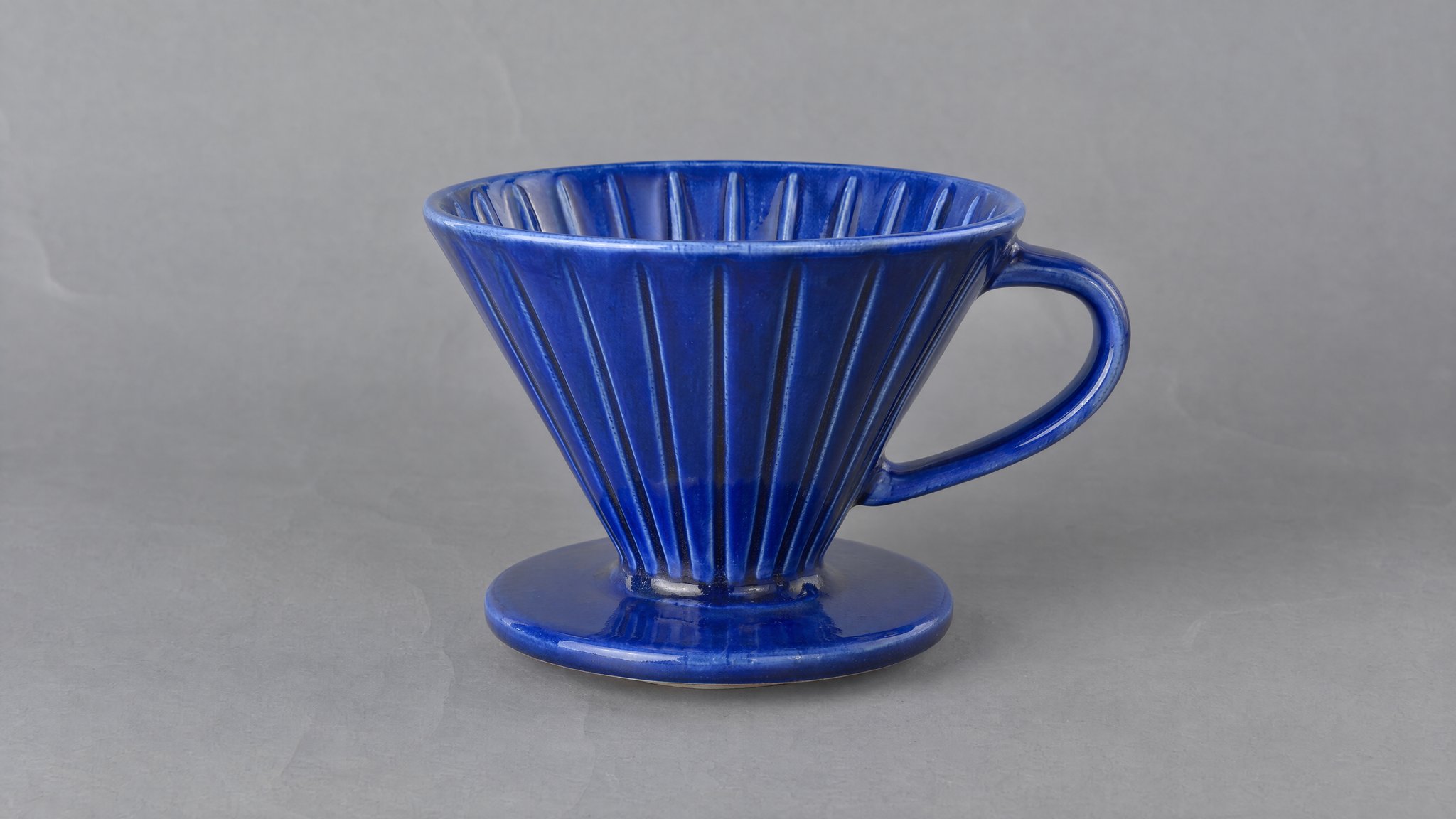
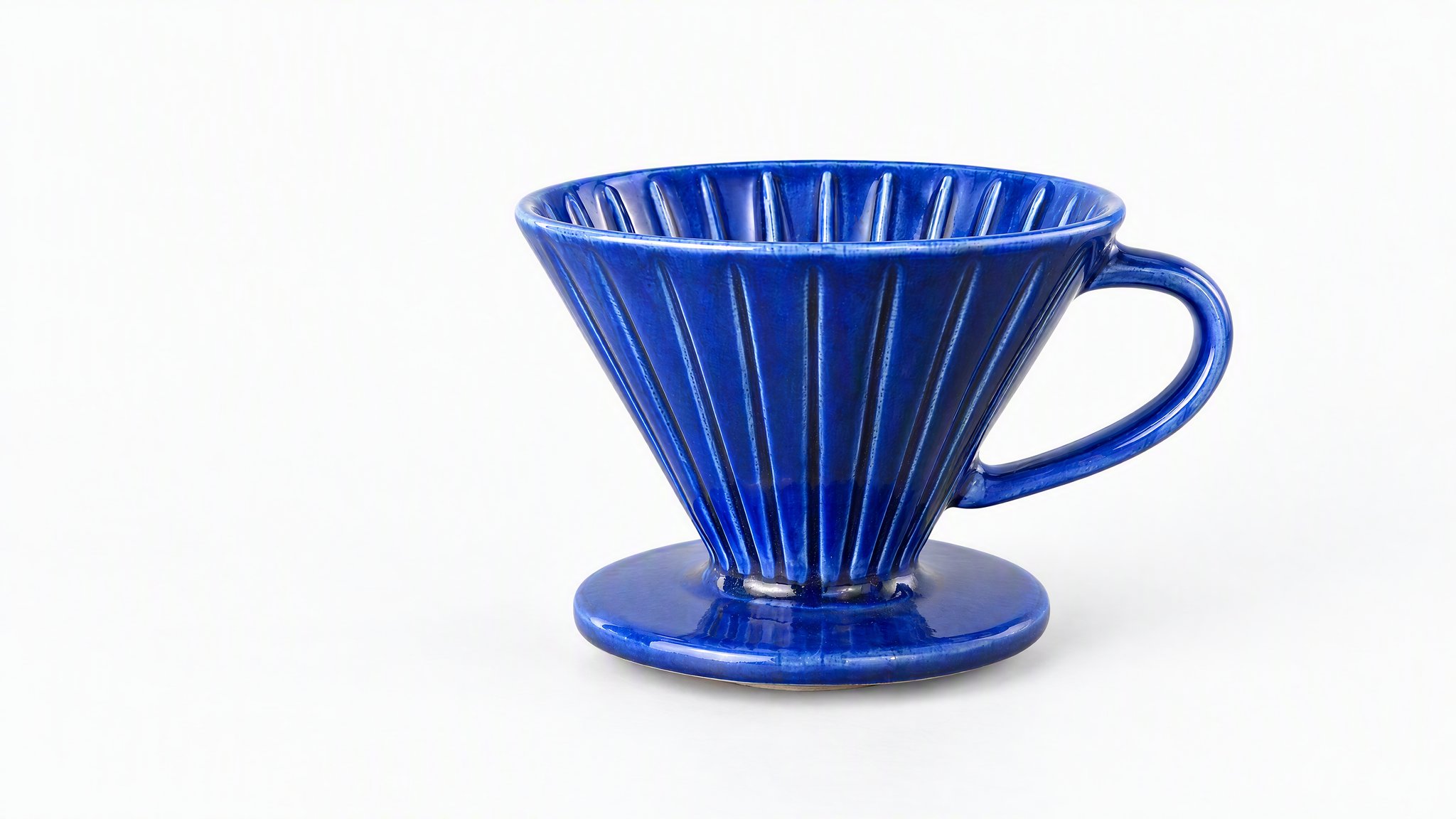
Check the edges
Zoom in around handles, pale edges and openings. Look for missing parts, halos or a background that spills onto the product.
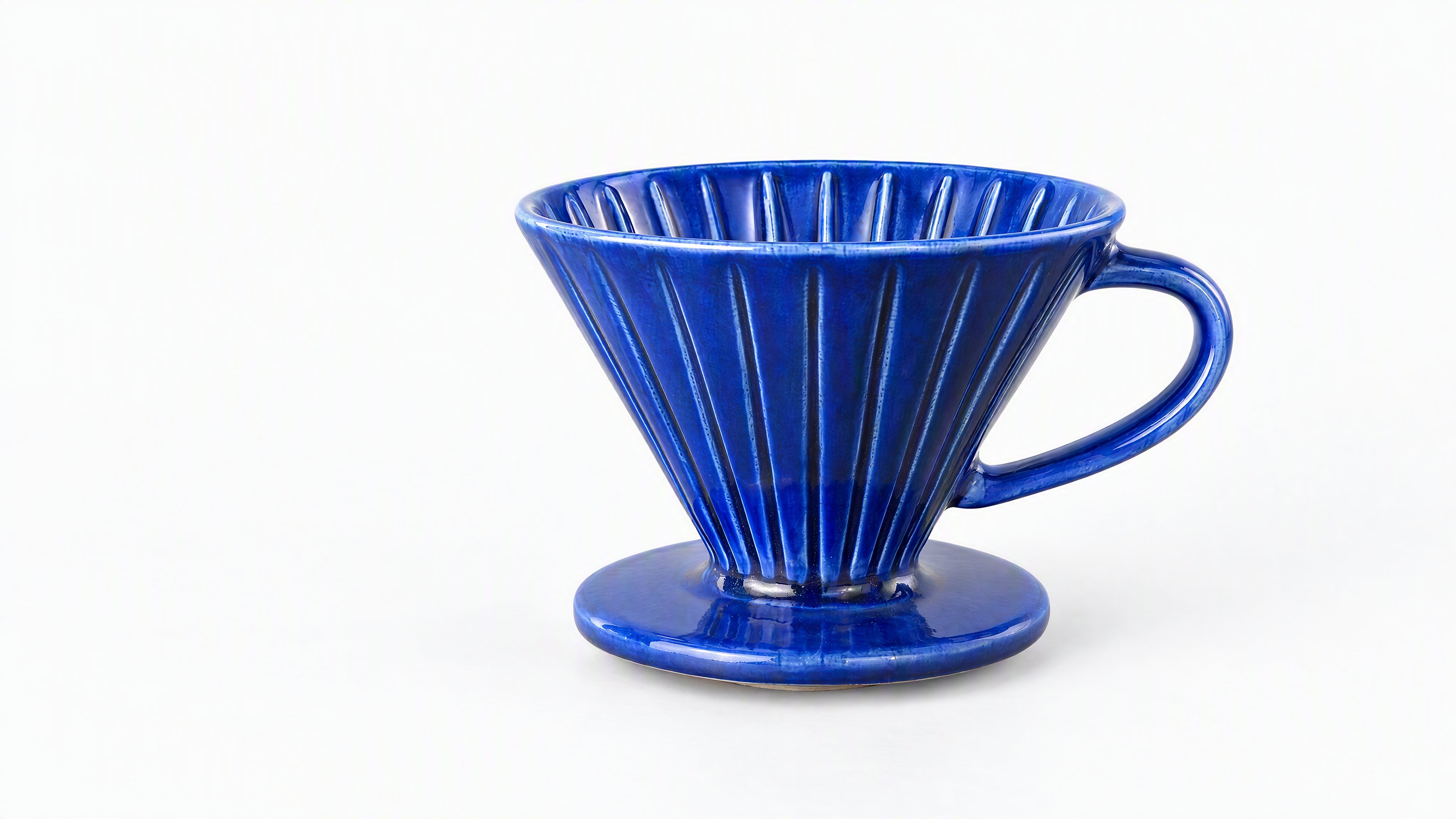
Add your product photo in Product Images and choose White for a pure-white background. Explore the Sunburst examples below for styled white and off-white scenes.
Paid plan required · Upload your product photo
Sunburst example and prompt
Compare the dripper on creased gray paper with the white studio scene. Use the full-size view to inspect the handle opening, ceramic ribs and glaze.
Ceramic, white leather and glass
We created these fictional products and edits in HummingBytes using GPT Image 2.5 Sunburst at Maximum quality, 3840 × 2160.
Prompt to adapt
Use the product in my photo. Replace the creased background with a clean white studio setting and soft, even light. Keep the whole product visible with a subtle contact shadow. Preserve its shape, color and visible details. Add no props or text.
Styled studio scenes
Use the prompts for the scenes on this page. The image studio opens with the ceramic dripper prompt; upload your product photo and adapt the wording. Sunburst can add shadows and off-white tones. A paid plan is required.
Image checklist
Inspect the finished image against your product photo before choosing it for your store.
Zoom in around handles, pale edges and openings. Look for missing parts, halos or a background that spills onto the product.
Compare the glaze, fabric or finish with your original photo. Reject a result if the edit changes the product's color.
Keep the whole product in the frame and choose the aspect ratio for its intended placement. Check your sales platform's requirements before publishing.
White background steps
Use "Create a white-background image" to open Product Images. Sign in and choose a paid plan if needed.
Upload a sharp photo with the whole product in view. Include handles, corners and transparent edges.
Select the White treatment and a supported aspect ratio for the image you need.
Check the image count and credit estimate before starting. Inspect the finished product against your reference and your sales platform's requirements.
More examples
Use each prompt with a photo of your own product.
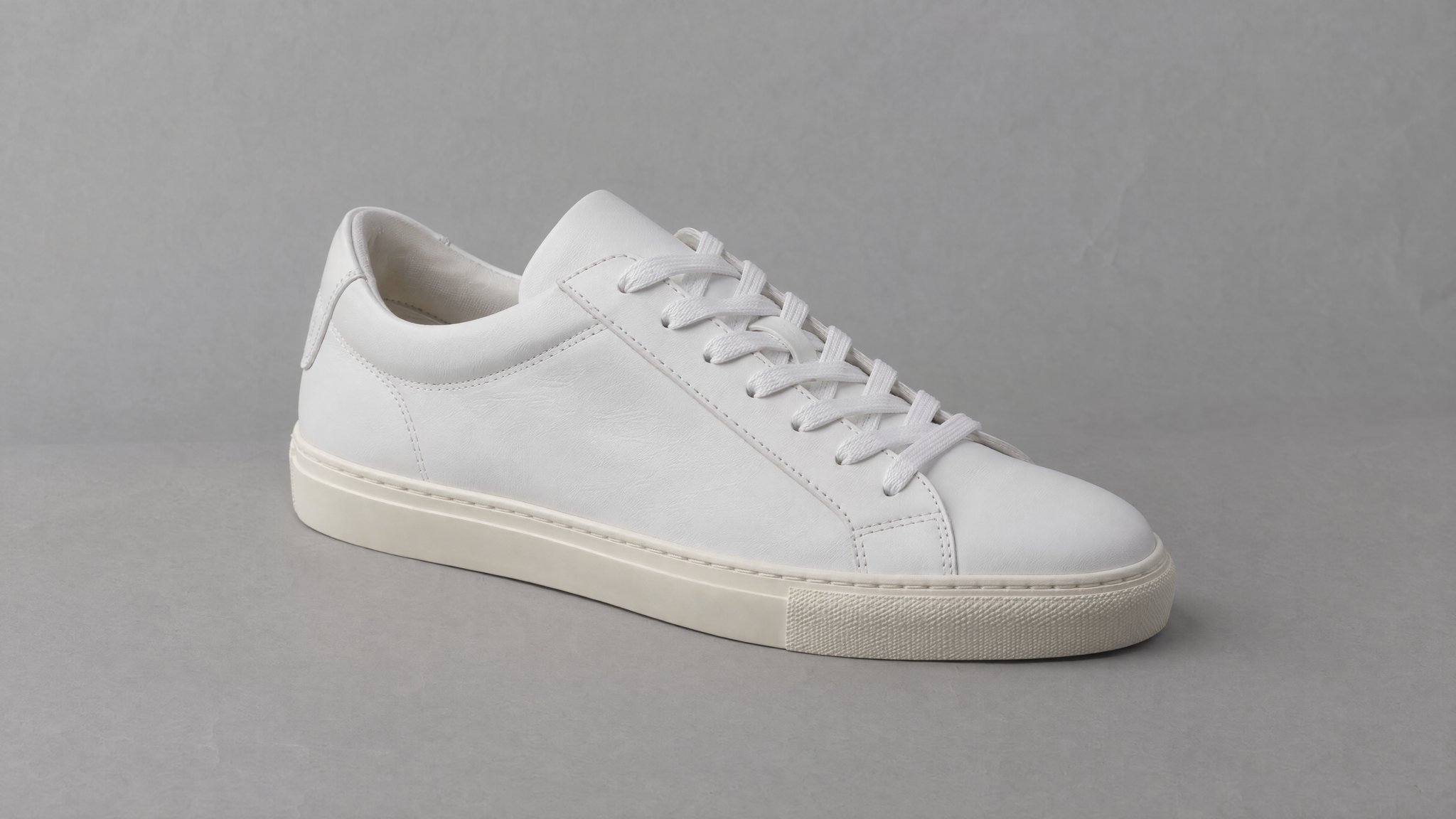
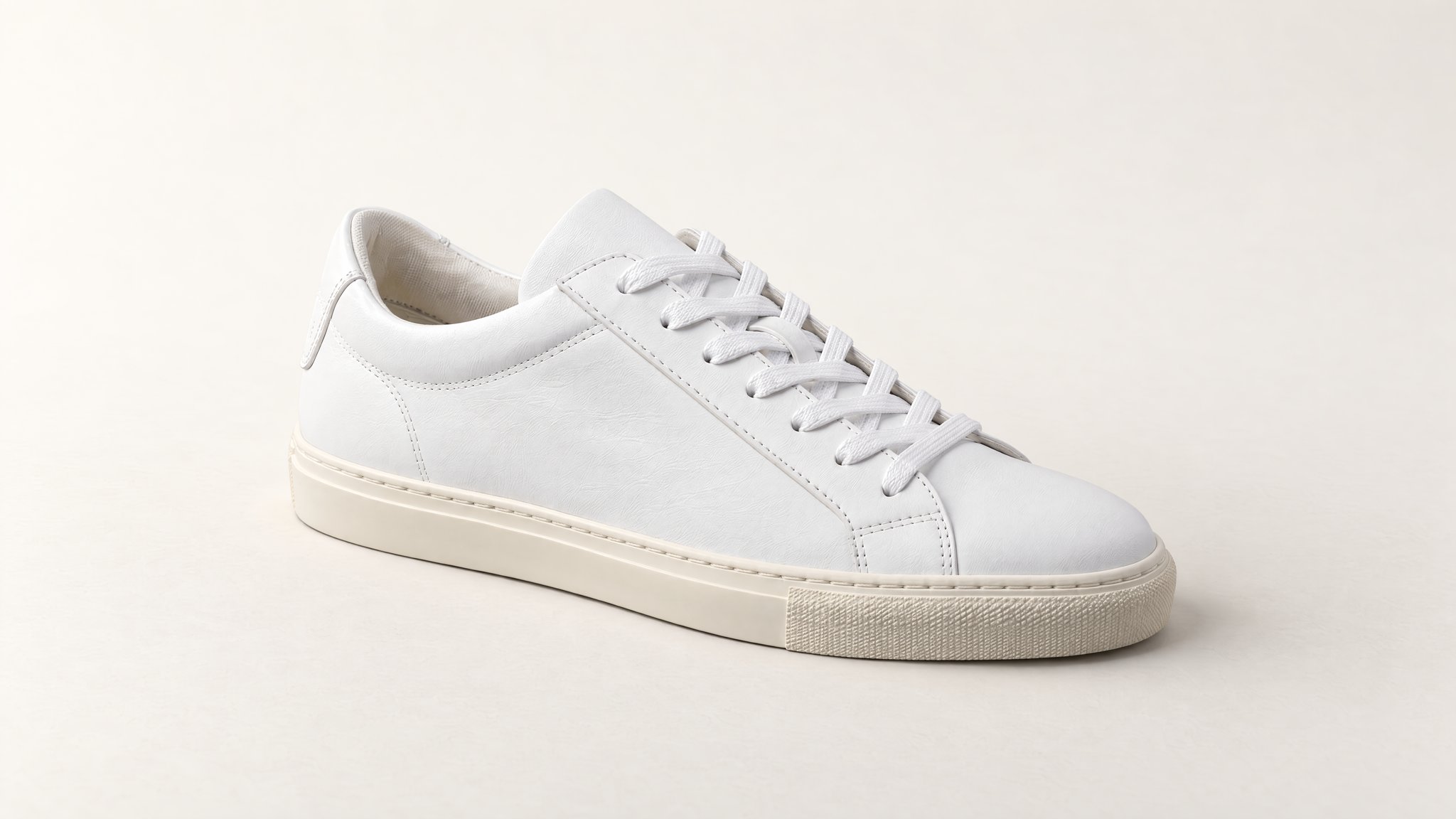
White leather on off-white
This Sunburst example uses an off-white background and side light to separate white leather from its surroundings. Choose White in Product Images when you need a pure-white background.
Prompt to adapt
Use the sneaker in my photo. Place it in a warm off-white studio with side light that separates the white leather from the background. Keep the camera angle, laces, stitching, panel shapes and sole unchanged. Show the whole shoe. Add no props, logos or text.
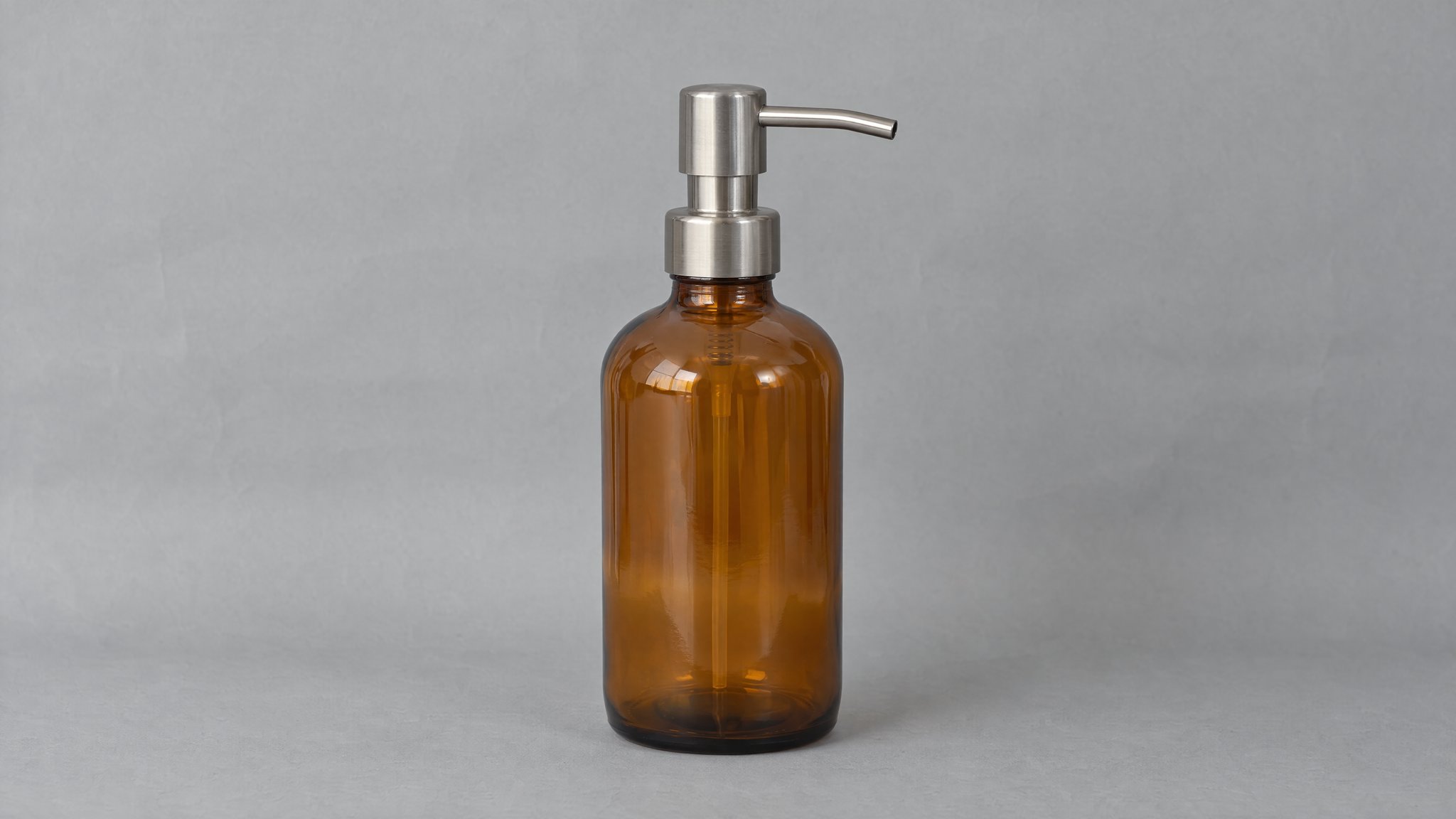
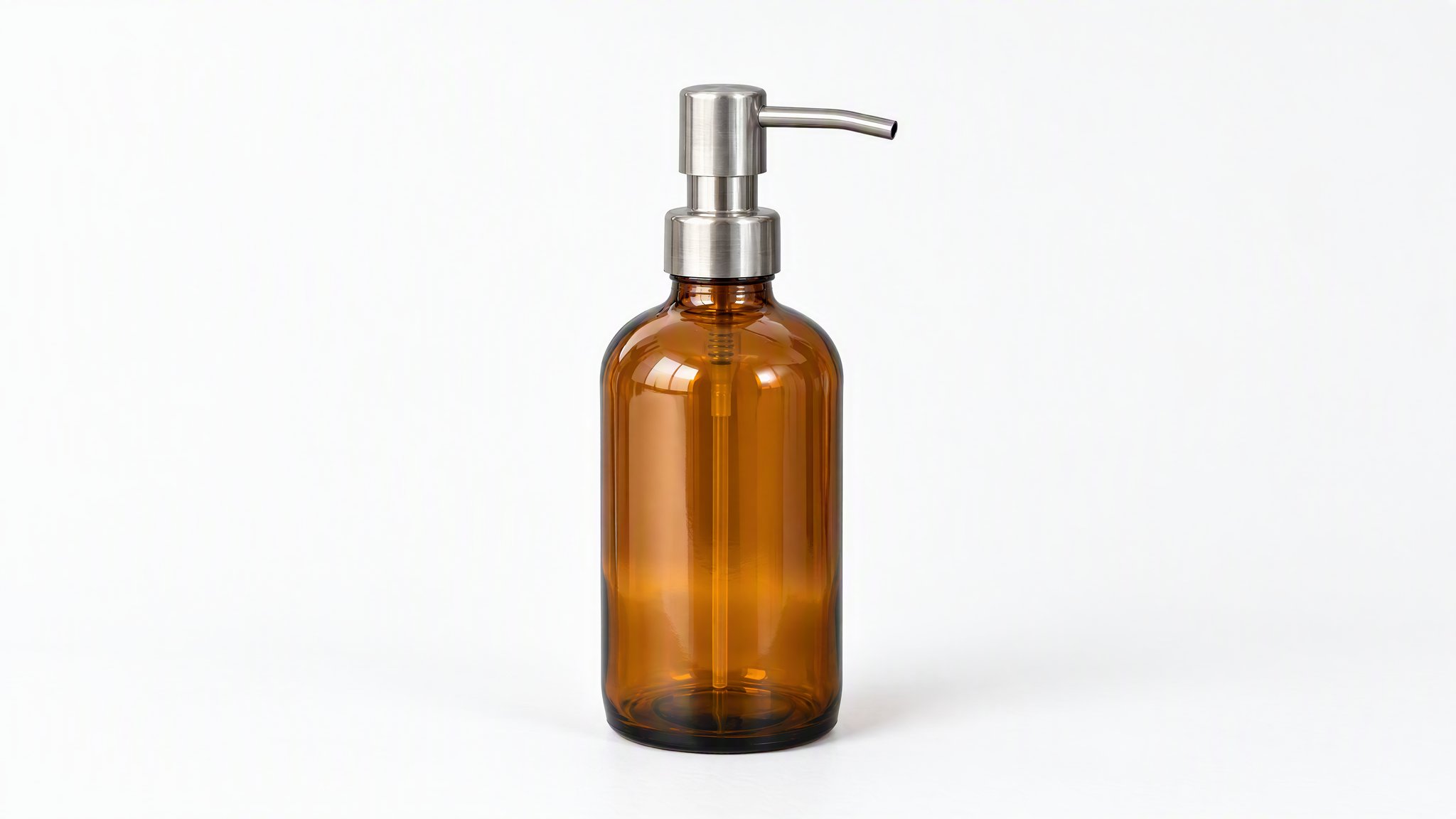
Glass with directional light
Use light from the upper left to show the glass edges and steel pump. Compare the pump opening and spout with the reference.
Prompt to adapt
Use the soap dispenser in my photo. Place it in a white studio with light from the upper left and a soft shadow. Preserve the transparent amber glass, steel pump, spout and bottle shape. Keep the whole dispenser visible. Add no props or text.
If this page matches the job, the next step is usually the workflow, finishing tool, or inspiration page that gets you moving faster.
Feature
Start from a reference image and transform it into edits, restyles, cleanups, and new visual directions.
Open pageUse case
Turn a phone-shot or rough source image into a studio-quality ecommerce product photo without changing the product itself.
Open pageUse case
Keep the product and packaging locked while replacing distracting backgrounds with cleaner catalog or lifestyle scenes.
Open pageYour product
Add your photo in Product Images and choose White. Review the cost before generating. A paid plan is required.