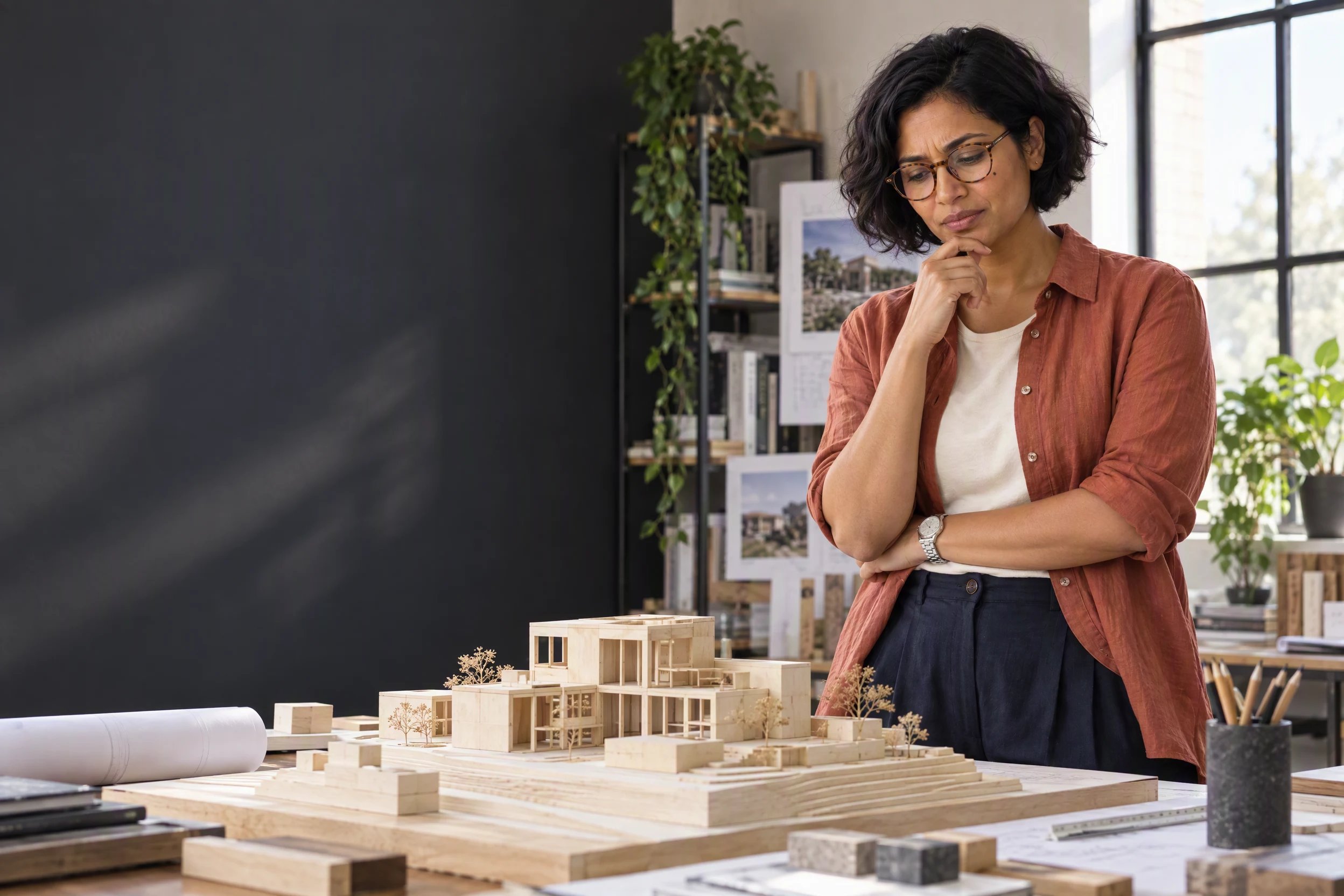
Create new scenes with your character.
Use a reference image to guide your character’s appearance in GPT Image 2.5. Describe a new scene or pose, then compare the result with your original.
Bring your reference image. GPT Image 2.5 is available on Starter, Creator and Pro.
We created these examples in HummingBytes with GPT Image 2.5 Sunburst. For each character, we reused one reference across six images. Open a scene to compare the details.
01 / Teaching stories
Use the same character throughout a lesson.
Create illustrations for a lesson or presentation from one character reference. In this example, we show the architect studying a model, adjusting it, and discussing it with a colleague.
Study the model
Adjust the design
Discuss the design
Add your explanation alongside these images in your lesson or presentation.
02 / Mascot expressions
Create a set of reactions for your mascot.
Use your mascot to welcome members or respond to their progress. We reused one reference to create these six poses.
Hello there
Welcome a new member.
Thinking it through
Invite your audience to solve a problem.
A little celebration
Celebrate a completed lesson.
Oh!
Introduce an unexpected discovery.
You’ve got this
Encourage someone to try again.
Time to rest
Close a lesson or community session.
Use these still images in your posts or lesson layouts.
03 / The next episode
Reuse the reference for your next episode.
Start your next batch with the reference you used before. We reused the architect’s original image for three scenes at a community library, changing the location and camera angle.
On location
Making a choice
Seeing it through
Keep a short description of the clothing and features you want to preserve, and reuse it in your prompts.
04 / Children’s books
Illustrate a children’s story with the same character.
We used Pip’s reference to create six illustrations, from finding a paper boat to returning home. Compare his face, blue scarf, and white ear tip across the scenes.
An unexpected discovery
Pip finds a paper boat outside his burrow.
The stream ahead
Pip discovers a stream beside the meadow.
A first little voyage
Pip launches the boat with one paw.
A place to shelter
Pip shelters beneath a fern during the rain.
Sunlight after the rain
Pip watches the boat from a mossy log.
Home again
Pip rests beside his burrow at twilight.
Generate the illustrations in HummingBytes, then add your story text and arrange the pages in your publishing tool.
Start with the character you want to keep.
A clear reference gives every scene the same starting point.
Choose your reference
Upload a clear character image, or generate an original character in Image studio and reuse it from your library.
Describe what changes
Name the action, expression, setting and camera angle. Repeat the details you want to preserve, such as clothing or a distinctive marking.
Review the next scenes
Generate individually or use a multi-prompt batch. Check faces, proportions and small details, then revise any image that drifts.
A prompt to start your next scene
Use the attached image as the character reference. Preserve the recognizable face, proportions, colors, clothing and distinctive details. Create one new scene with this character: [describe the action, setting and expression]. Keep the original visual style. Change the camera angle to suit the scene. One complete image, with no collage, captions or watermark.
Before your next scene
Will the character look identical in every image?
Can I use an illustrated character instead of a person?
Does HummingBytes turn these images into a finished book or storyboard?
Which plan includes GPT Image 2.5?
Reuse your reference for the next scene.
Use the reference you already like to create a new scene, expression or chapter.