3D weather app widget
A floating city map tile with live weather, time, and temperature.
Generate a photo like thisExplore the prompt- Recommended Workflows
- Gemini 3 Pro Image
- Recommended Aspect Ratio
- 1:1 (Square)
- Reference Images Required
- No
01 / The recipe
Prompt variants
Use these as short alternate directions for 3D weather app widget; each variant keeps the recipe recognizable while pushing a different outcome.
Generate a Weather App Widget for **{{city}}**. **Style Mode:** {{style_mode}} (Cartoon OR Realistic) Find the current live weather, time, and temperature for this city. Render the city on a floating map tile with a matching UI gradient background and the data overlay.
02 / Make it yours
A little direction goes a long way.
Create a 3D weather app widget with a compact weather or interface visual with readable location, mood, and scale. No reference image is required, so the prompt carries the subject, setting, composition, and style constraints. This recipe is useful for weather widgets, app mockups, city cards, interface concepts, and location-based visual systems.
Best for / not ideal for
Use this section to decide whether 3D weather app widget is the right recipe before spending credits on variations.
Best for
- 3D weather app widget concepts where the example image is close to the result you want.
- Visual directions built around a compact interface-style visual with readable atmosphere and a clear location cue.
- Compositions that benefit from a small scene or interface surface that makes the weather concept instantly clear.
- Fast testing with Gemini 3 Pro Image in 1:1 (Square).
Not ideal for
- Tasks where the prompt direction is unrelated to the example style.
- Strict documentation, compliance images, or untouched source-photo cleanup.
- Final assets that need exact text, measured layouts, or production typography.
- Projects where a different recipe already matches the target look more closely.
How to adapt the prompt
Keep the core idea of 3D weather app widget, then change the details that control identity, style, color, background, and framing.
Subject and likeness
Style intensity
Color palette
Background simplicity
Composition and crop
Common fixes
If 3D weather app widget is close but not usable yet, make one of these targeted prompt edits before changing everything.
Subject drift
Too busy or chaotic
Colors overpower the subject
Image feels flat
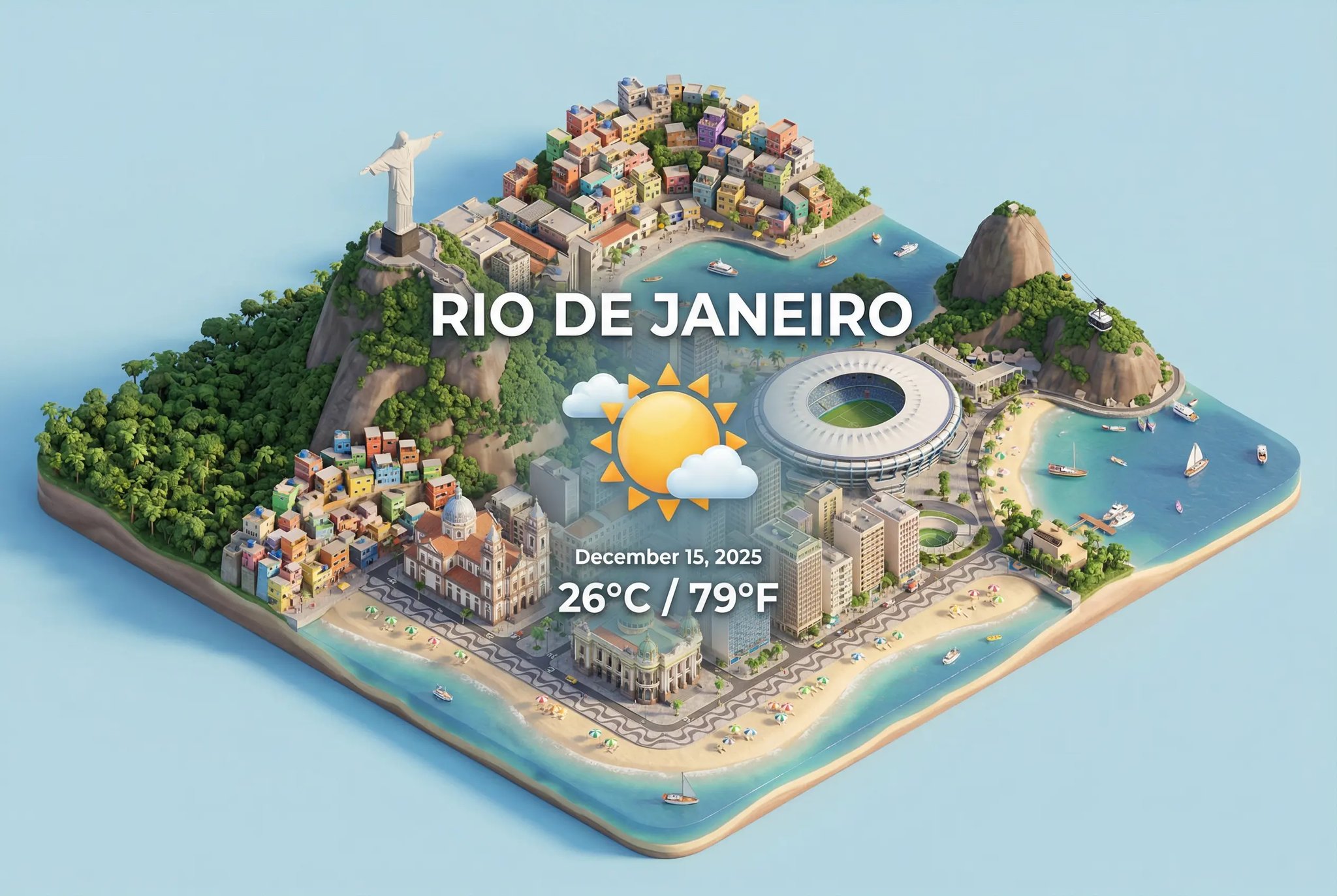
Isometric weather card
Isometric weather card creates a miniature or 3D-style scene with playful scale, shape, and detail.
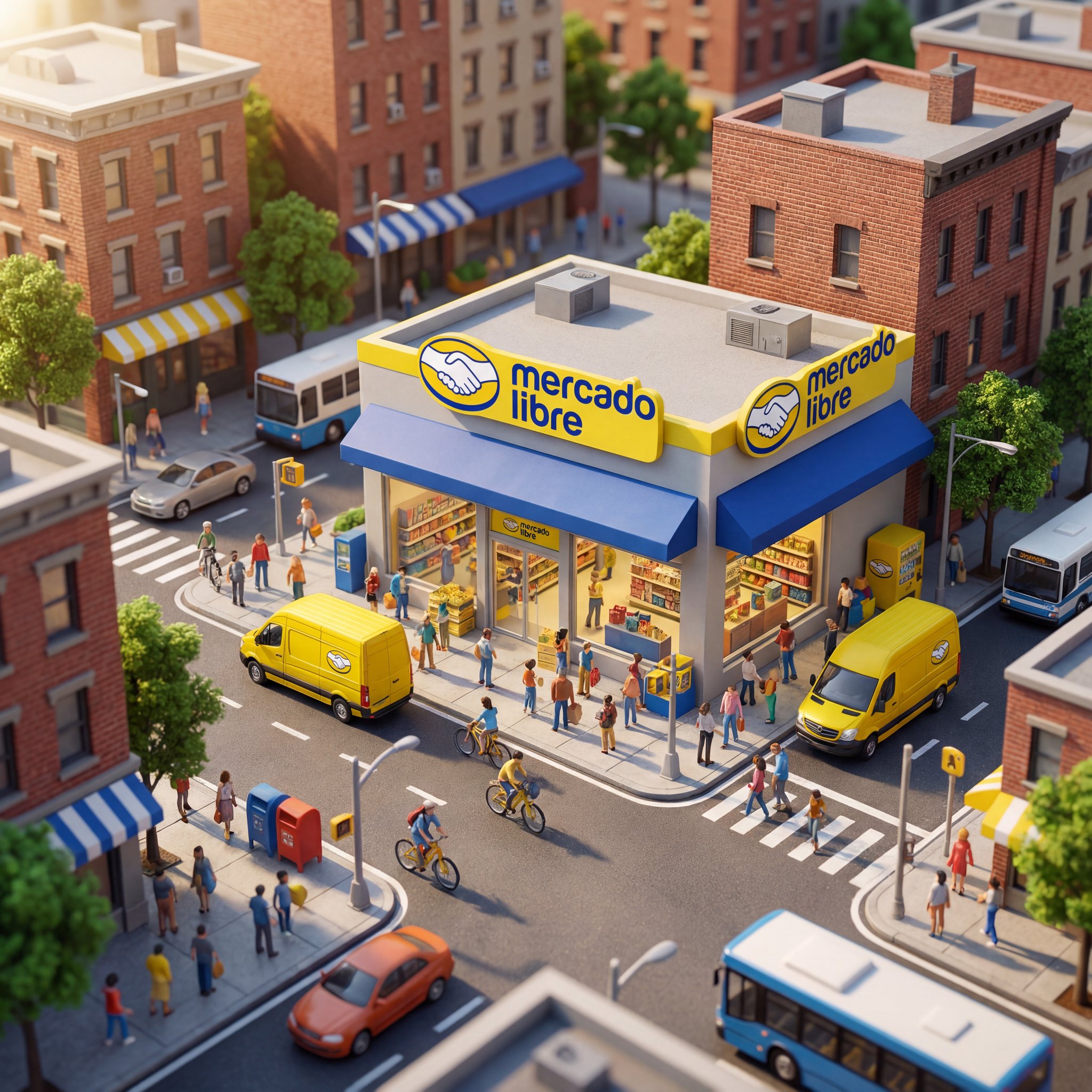
Miniature storefront city scene
Miniature storefront city scene creates a miniature or 3D-style scene with playful scale, shape, and detail.
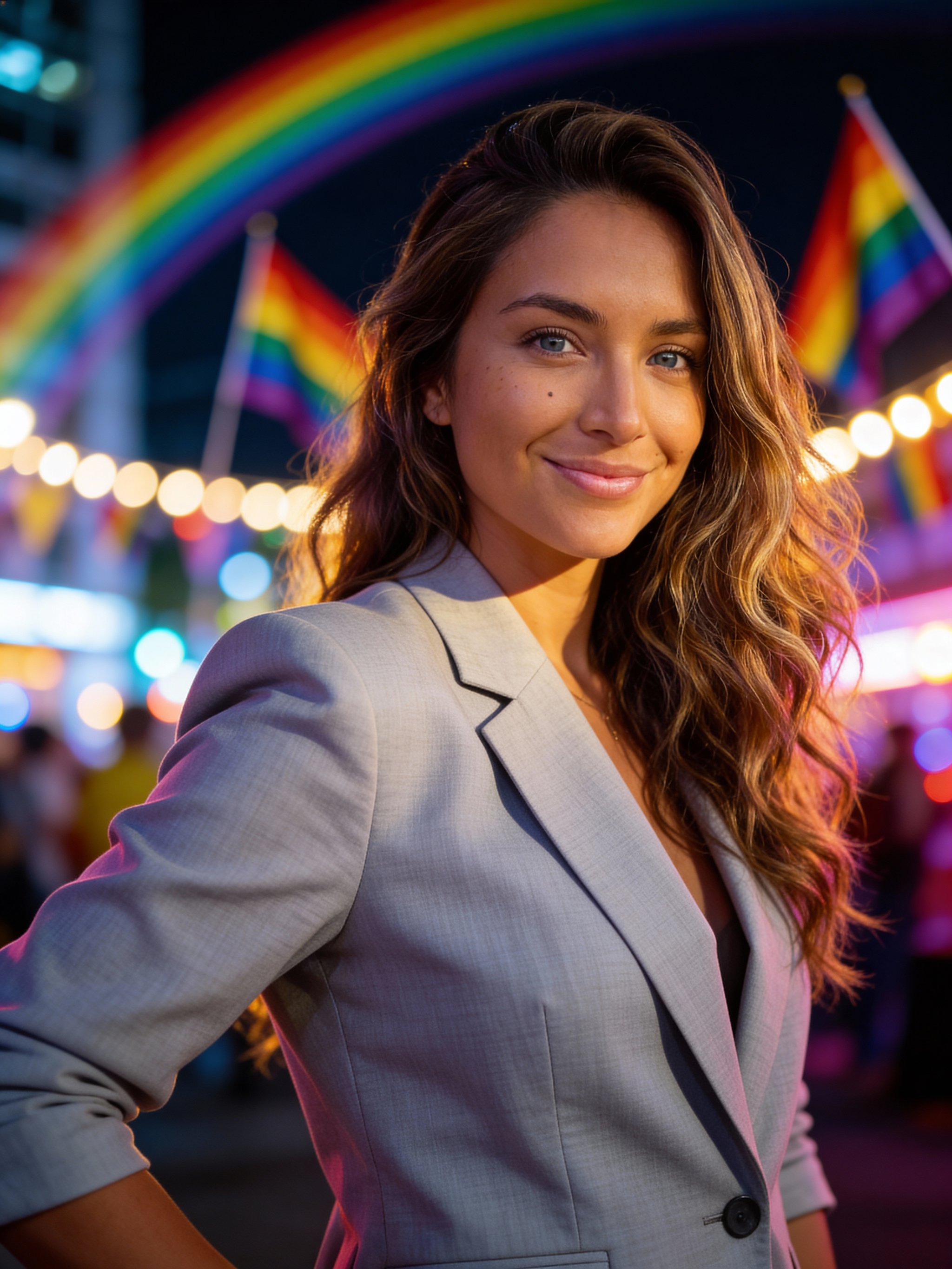
Pride month celebration portrait
Pride month celebration portrait focuses on a recognizable portrait result with clear subject presence and useful creative variations.
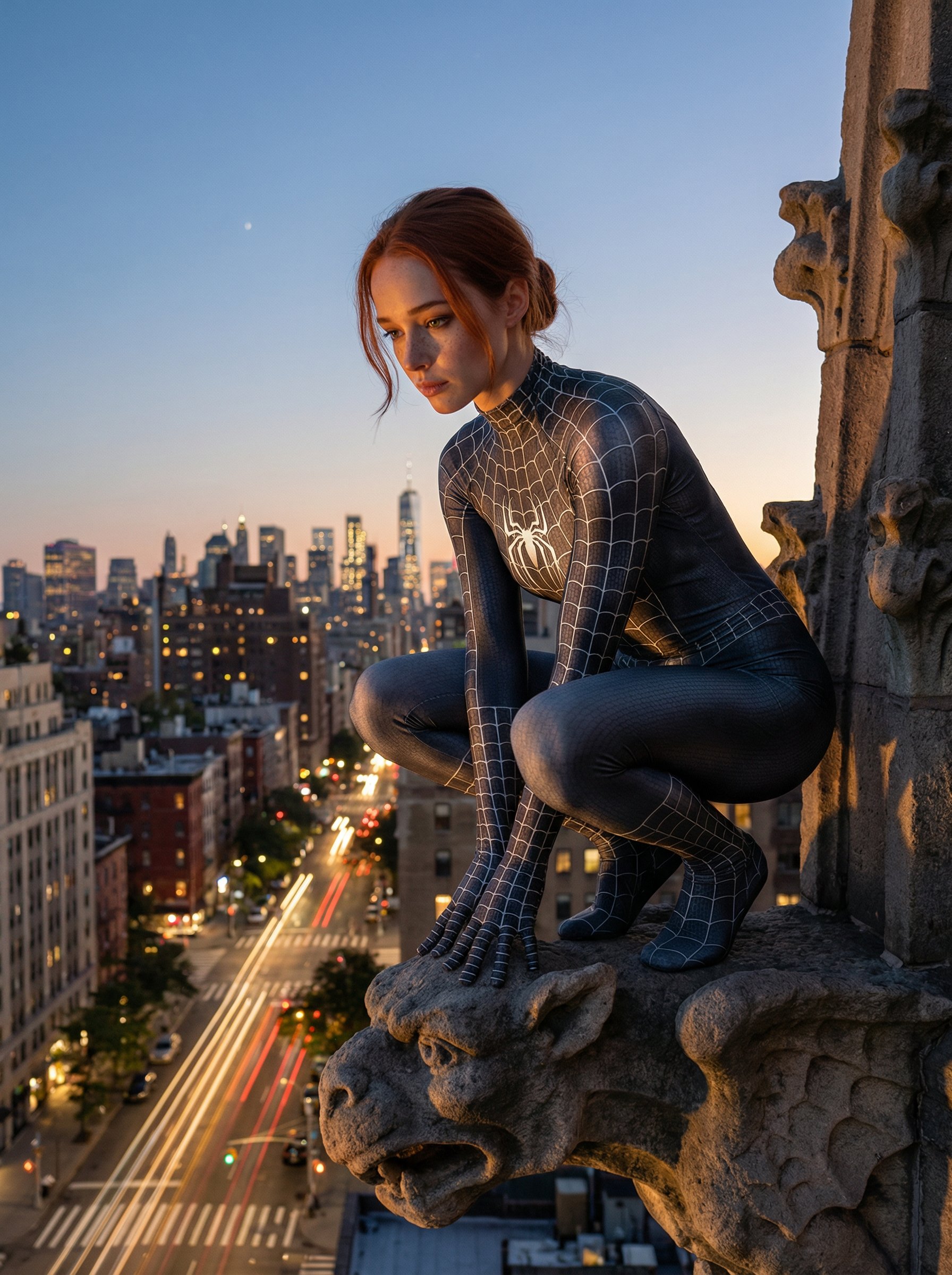
Spider-Woman gargoyle vigil
Spider-Woman gargoyle vigil creates a cinematic character concept with stronger costume, atmosphere, and story cues.
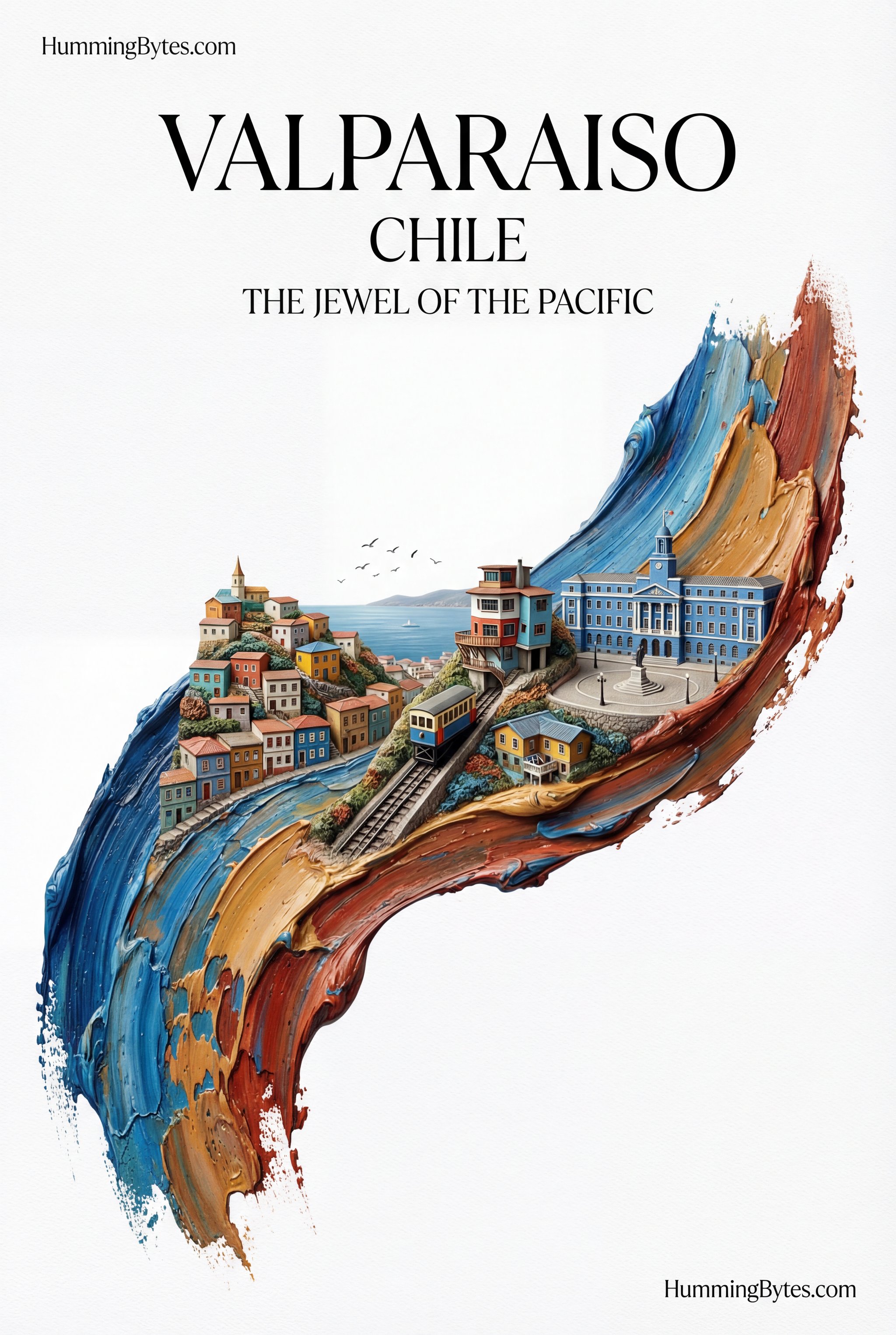
Brushstroke city poster
Brushstroke city poster uses a stylized art direction for portraits, avatars, posters, and expressive personal visuals.
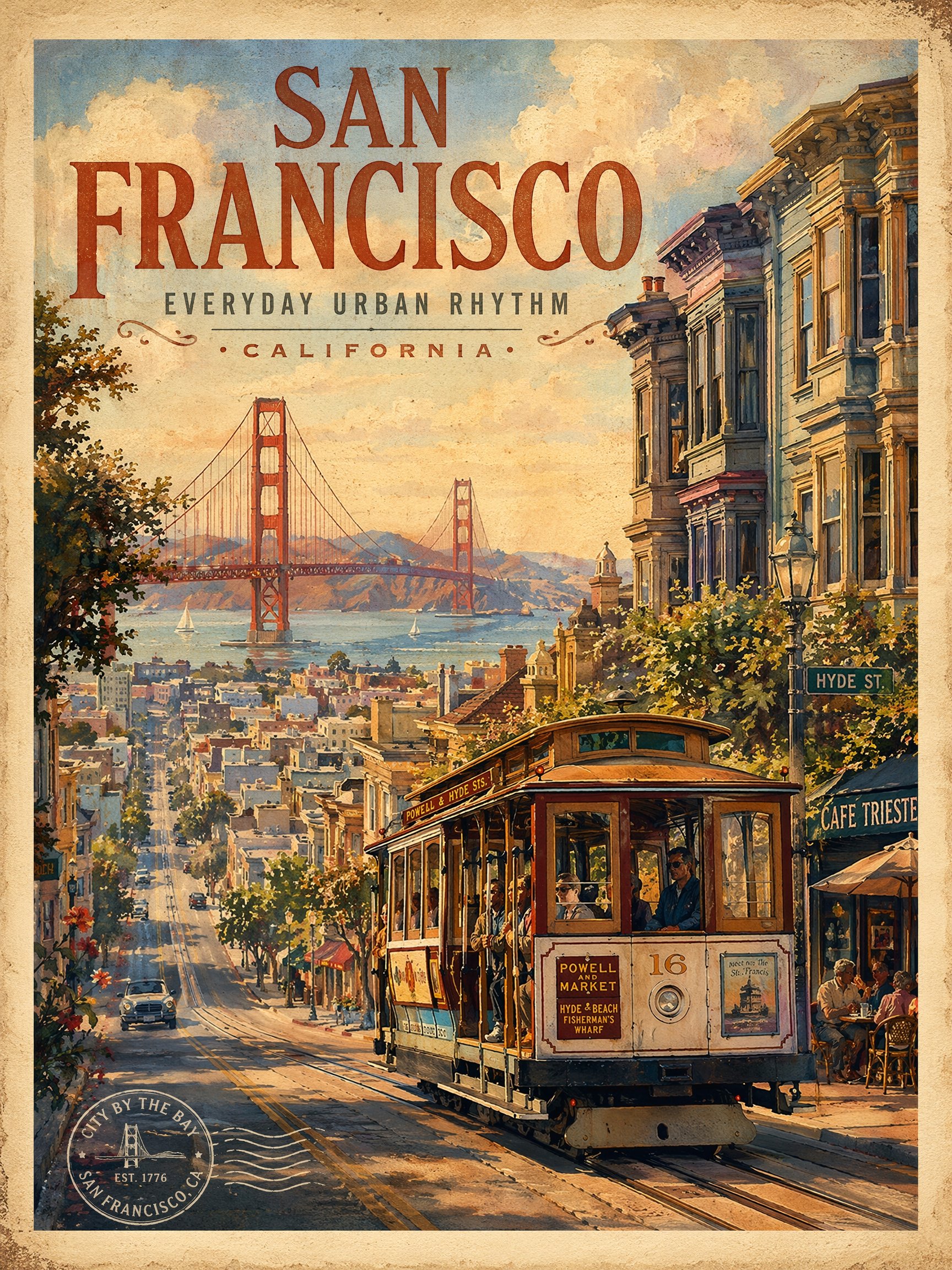
Vintage travel poster
Vintage travel poster creates destination-led visuals for travel campaigns, creator posts, and editorial trip concepts.
Make it yours
Create with this recipe.
Open this recipe in the generator and add your details.
Generate a photo like this