HummingBytes / AI image upscaler
Your image. A closer look.
Enlarge the photo you want to keep. Compare texture, edges and small details before you download.
Paid plans · Credits depend on output size
Upscaled example · Compare the original below
Look before you export
Compare the original and the upscale.
Move each slider to compare the original and upscaled images. Open an example to inspect the same area at a larger size.
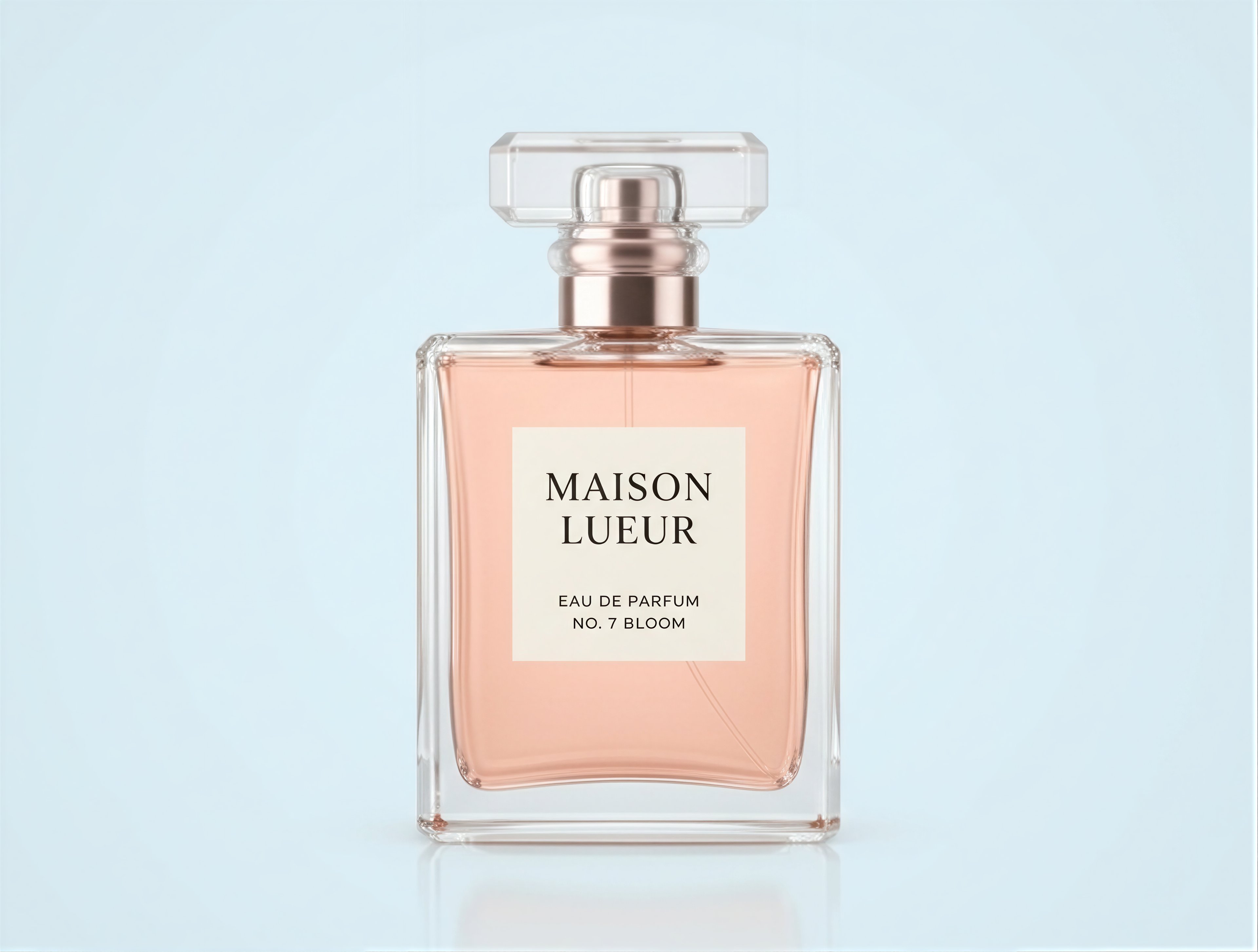
Start with the label.
Check the lettering, glass edges and reflections. AI adds detail, so compare the result with your source before using it in a listing or ad.
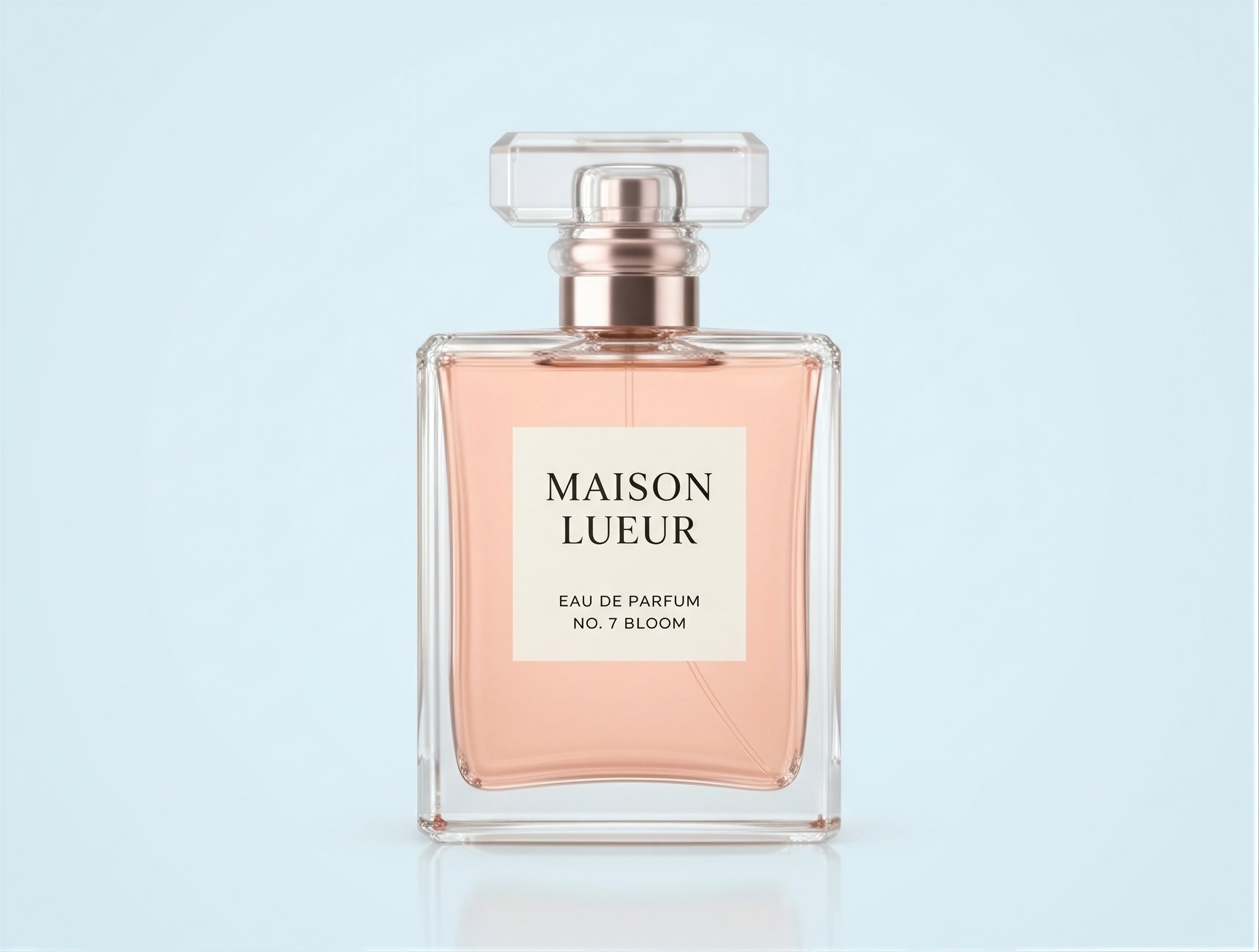
Perfume bottle
Compare the label and the edges of the glass.
592 × 448 → 5682 × 4300
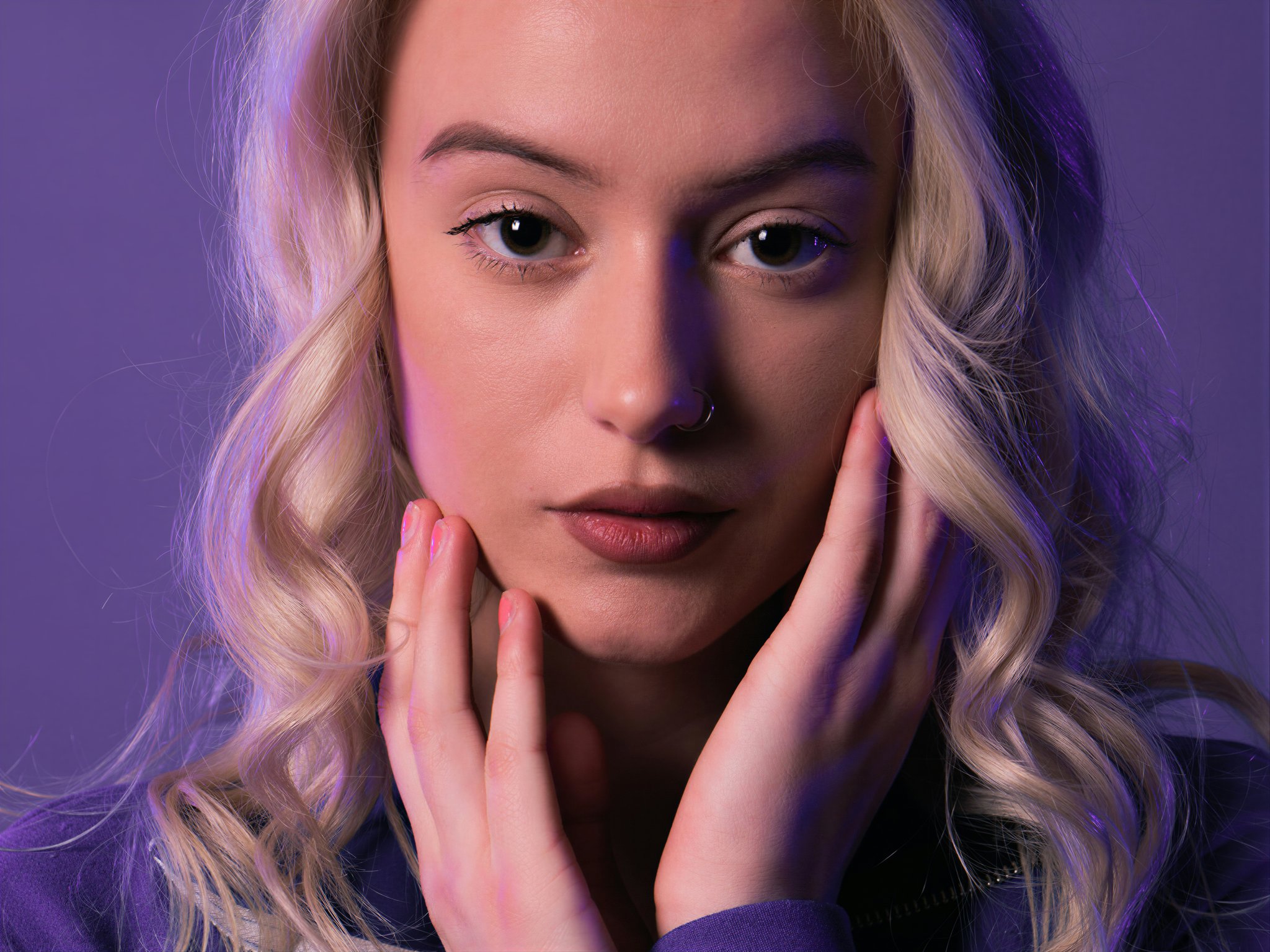

Portrait in purple
Inspect the eyes, hair and skin texture.
768 × 576 → 4684 × 3512
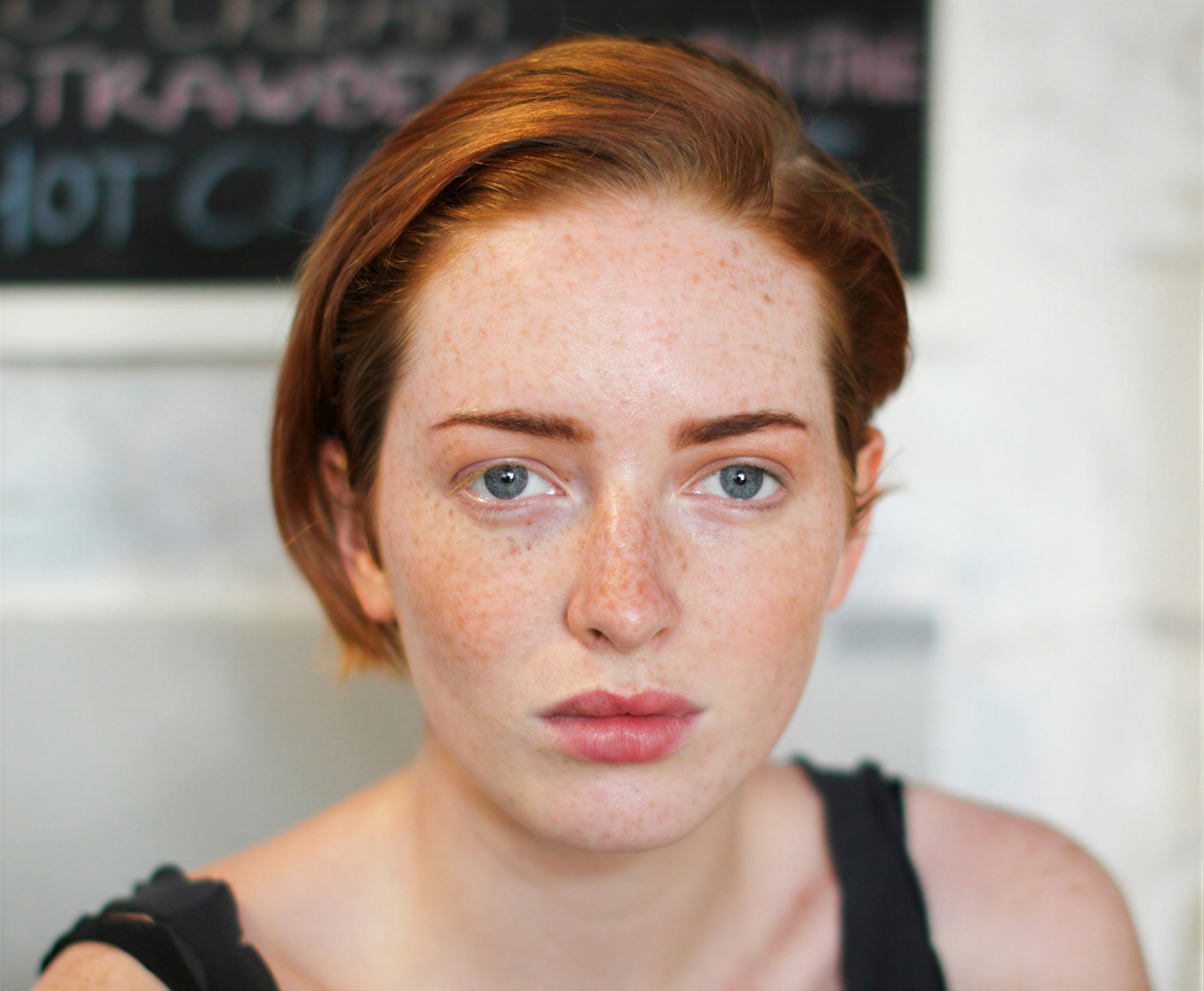
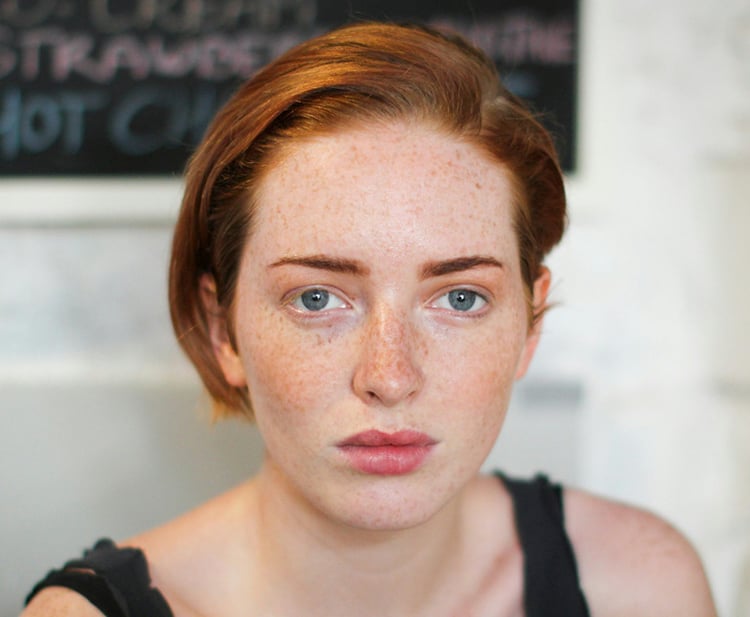
Portrait headshot
Compare facial detail and the outline against the background.
768 × 632 → 5452 × 4486
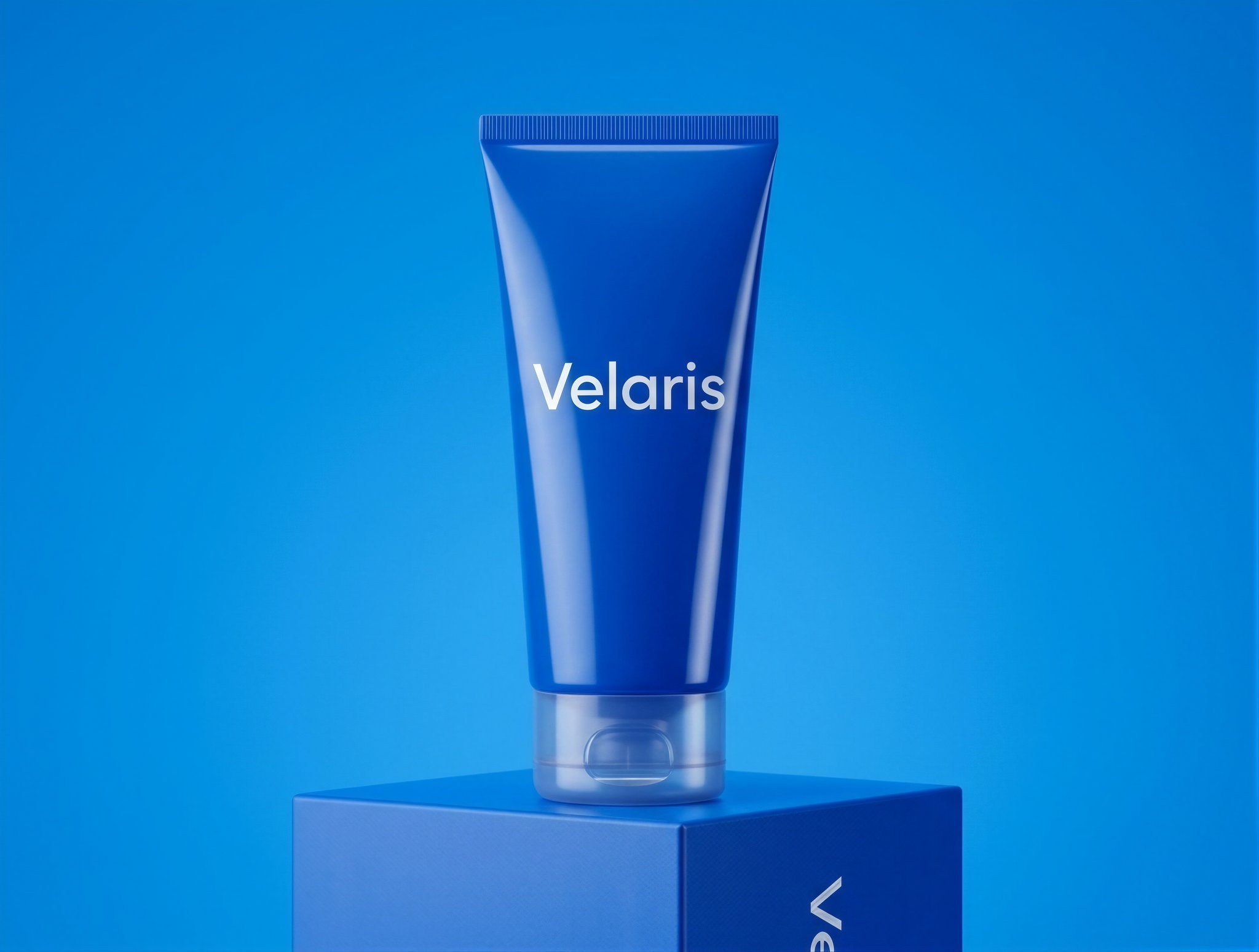
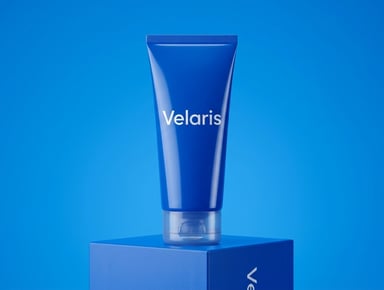
Skincare packaging
Look at small lettering and the container edges.
592 × 448 → 5682 × 4300
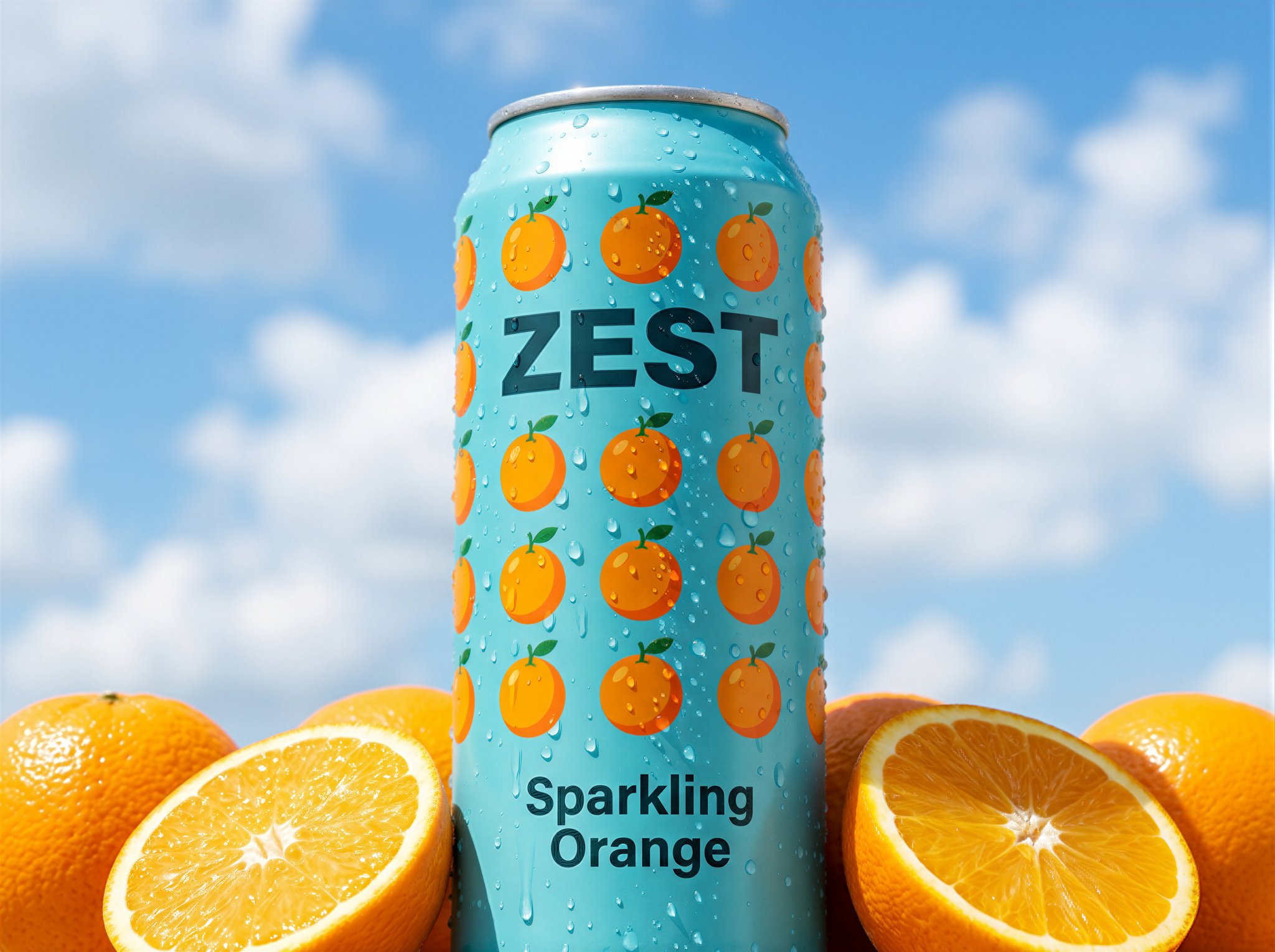
Beverage campaign
Inspect the packaging and surrounding highlights.
600 × 448 → 5700 × 4256
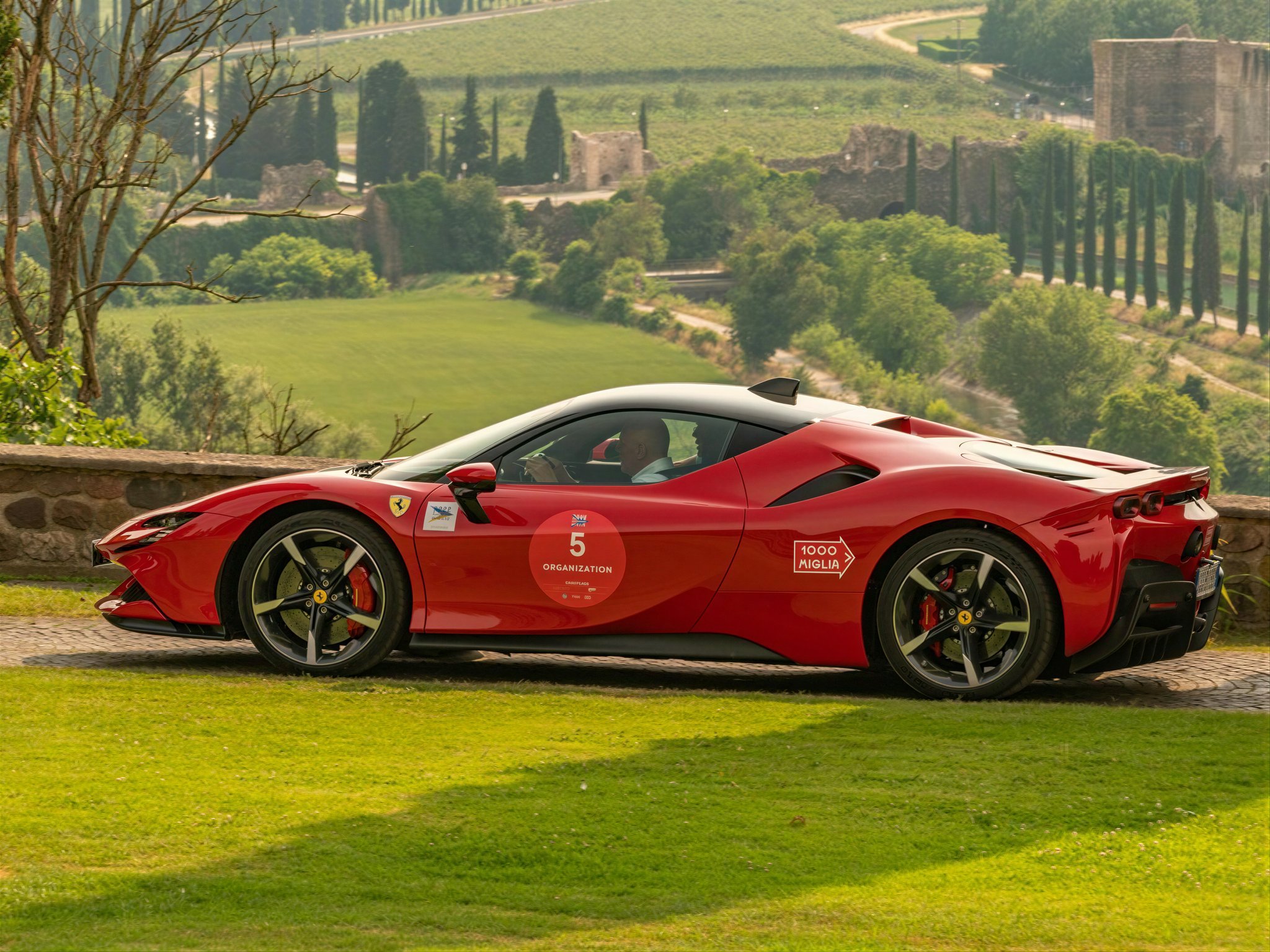
Racecar in Tuscany
Compare the car contours and distant scenery.
768 × 576 → 5682 × 4262
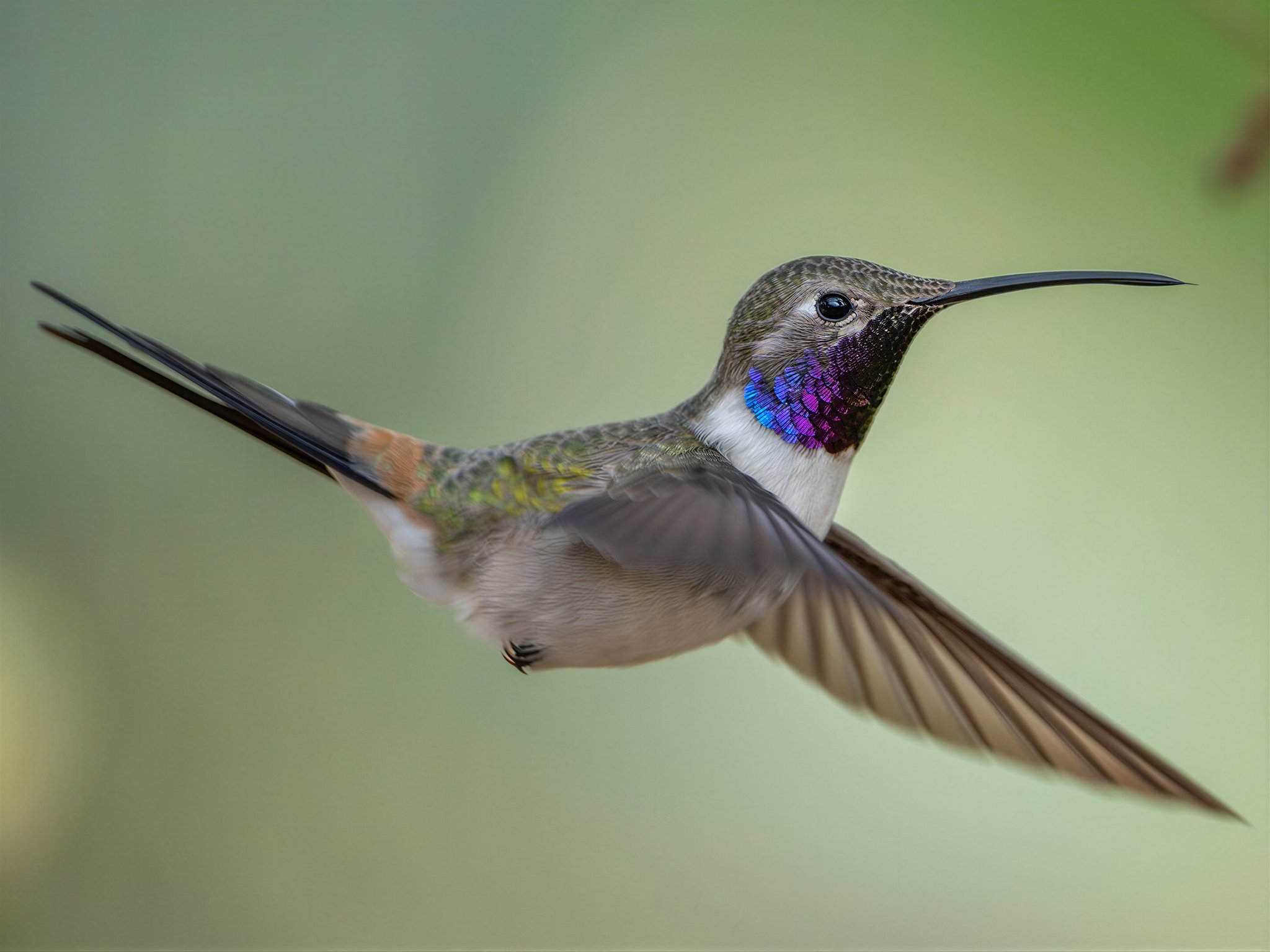
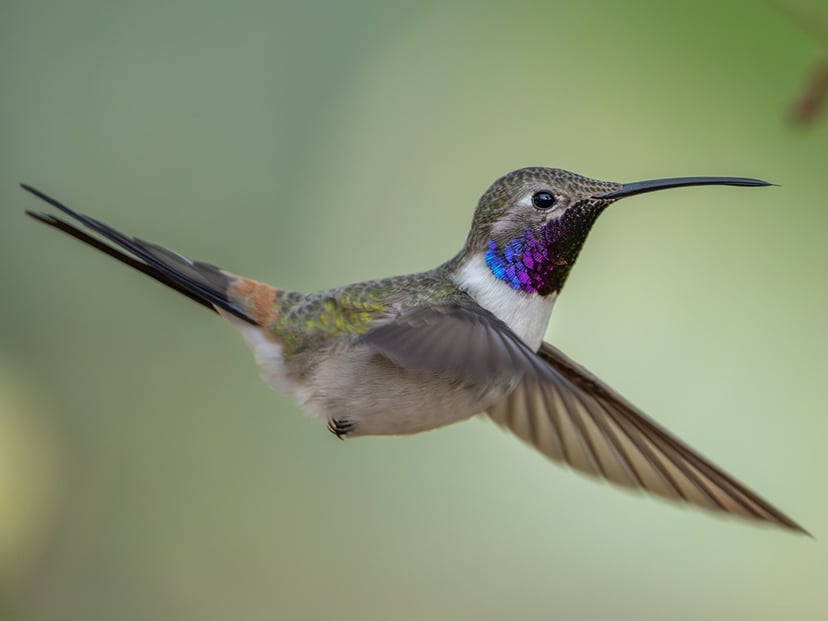
Hummingbird in flight
Look at the feathers and the edge of each wing.
1024 × 768 → 5732 × 4300
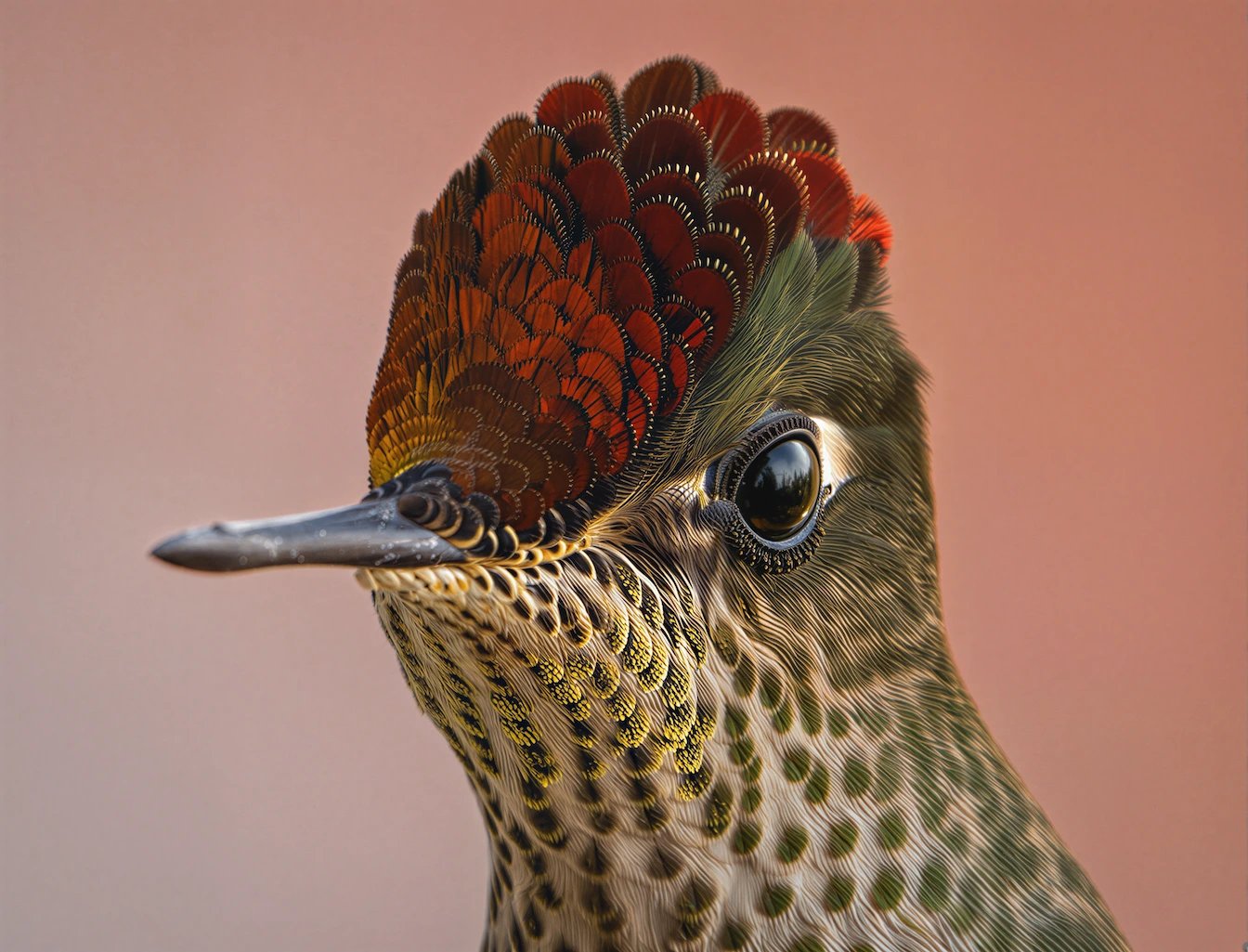
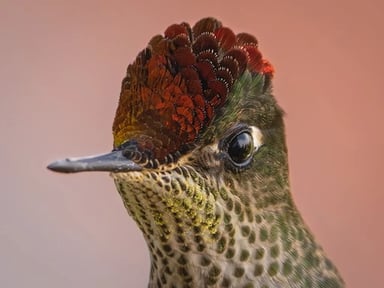
Hummingbird close-up
Inspect the eye and feather texture.
512 × 384 → 1344 × 1025
Resolution and detail
Choose the size. Check the result.
Ultra Image Upscaler uses SeedVR2. Choose a target resolution in the app and review the credit estimate before running it.
Output sizes from 4 to 32 MP
Choose 4, 8, 12, 16, 24 or 32 MP. Output dimensions depend on your image’s aspect ratio; 4 MP does not mean 4K.
Need a 4K image?
4K usually refers to about 4,000 pixels across. Select a target that fits your aspect ratio, then check the downloaded dimensions.
Review added detail
AI can change lettering, faces and textures. Check the result against the original, especially for product labels and close portraits.
How it works
Upload. Upscale. Review.
Use an uploaded photo or an image you generated in HummingBytes.
Choose your image
Start with the composition you want to keep. Finish creative edits before upscaling.
Select an output size
Choose a target resolution and check the credit estimate in the app.
Compare and download
Inspect the result before downloading. Use image-to-image editing if you need to change the scene.
Batch image upscaling
A whole set to upscale?
Use standard batch generation to upscale multiple images together.
Select the upscaler, add your reference images and review the batch total before launching.
Explore batch generationPlans and credits
Pay with your plan credits.
Available on paid plans. Larger output sizes use more credits. Check the current estimate in the app and compare plans on the pricing page.
See full pricingAI Image Upscaler
AI image upscaler FAQ
What is an AI image upscaler?
An AI image upscaler increases image dimensions and generates additional detail. You can compare the larger result with your original before you download.
Can I upscale an image to 4K?
You can choose targets from 4 to 32 MP. Whether the result reaches about 4,000 pixels across depends on the aspect ratio and target size. Check the output dimensions; 4 MP is not the same as 4K.
What is the difference between upscaling and resizing?
Basic resizing interpolates existing pixels. AI upscaling generates additional detail while enlarging the image, which can also change small features.
Can I upscale photographs?
Yes. You can use uploaded photos, including portraits and product images. Compare the result with the original to check whether the added detail suits your photo.
Does image upscaling also enhance quality?
Upscaling can improve perceived detail at a larger size. Enhancement is a broader category that includes lighting changes, denoising and other edits.
Can I upscale AI-generated images?
Yes. You can upscale an image you generated in HummingBytes. Finish composition and style changes first, then inspect the enlarged result.
When should I use image-to-image instead?
Use image-to-image editing to change the scene, lighting or style. Use upscaling when you want a larger version of the composition you already have.
Can I use this for ecommerce product photos?
Yes. Inspect labels, logos, colors and small details before using the result in a product listing. AI may change them.
Can I upscale multiple images at once?
Yes. Choose the upscaler in standard batch generation, add multiple reference images and review the batch settings and credit total before launching.
How many image upscales do I get with each plan?
The number depends on your available credits and chosen output resolution. Upscaling is available on paid plans. Check the current per-image estimate in the app and plan allowances on the pricing page.
What kinds of images benefit most from upscaling?
Use it for photos, portraits and generated images that need larger dimensions. A clear source gives the model more useful detail; inspect the result for your intended use.
Will upscaling fix a very low-quality image?
Results depend on the source. A tiny, blurred or damaged image may gain invented details rather than recover accurate ones. Check faces, text and textures against the original.
HummingBytes / Image upscaler
Give your next image a closer look.
Choose a photo, set your target resolution and inspect the result.